


How to Scan Documents for Your Application
For our applications you must provide a high-quality scanned copy of each document — the bank, in particular, checks every passport scan against the same few rules and rejects the ones that fail. This page lists those rules and shows the fastest way to make a good scan with the Notes app on an iPhone.
Scan rules for the bank and NIF forms
- Make a high-quality scan — a PDF or an image file — of the whole document.
- All 4 corners of the document are visible.
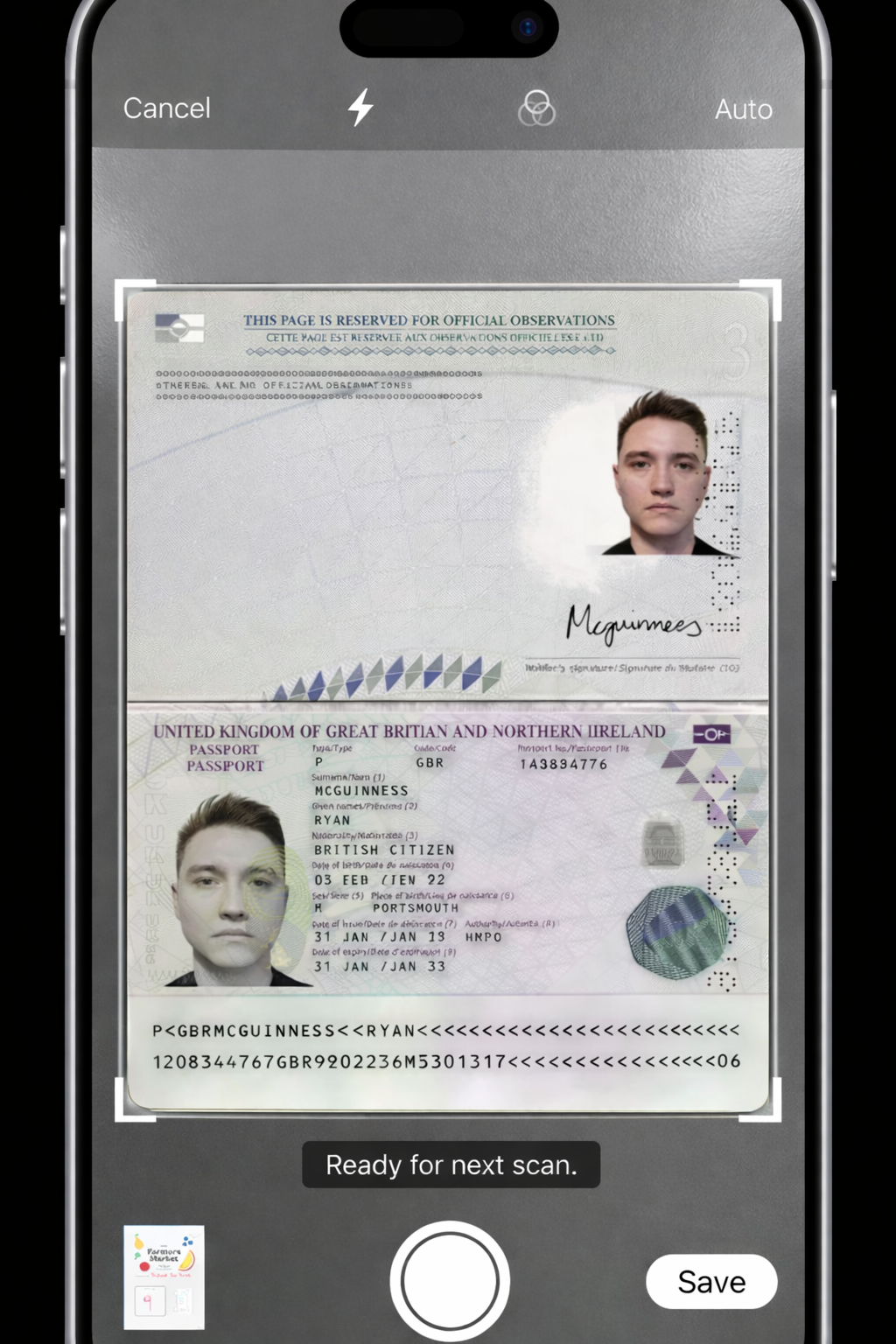
- For a passport, both pages go on one scan: the page with the photo and the page with your signature. If your signature is on a separate page, make sure it is in the scan.
- No fingers on the document.
- The passport is signed and valid.
- All details are fully legible: no light reflections, shadows or blurry text — scan in a well-lit place.
- For the NIF document, scan both pages into one file. The name on it must match the machine-readable line of your passport — see what the NIF document looks like.
- Documents that need a signature should be signed by hand with a pen. If you can only provide an e-signed document, make sure the signature meets the EU digital signature requirements and can be clicked to verify it.

Scan a document in Notes on iPhone
You can use the Notes app to scan documents on your iPhone in just a few seconds:
- Open Notes. Open the Notes app and select an existing note or create a new one.
- Start the scanner. Tap the Attachment button, then tap Scan Documents.
- Position the document. Place your document within the camera view.
- Capture and adjust the scan. If your device is in Auto mode, the document is scanned automatically; you can also capture it manually by tapping the shutter button. Then drag the corners to fit the scan to the page — all 4 corners must be clearly visible — and tap Keep Scan.
- Save. Tap Save, or add additional scans to the document first.
Where you will need these scans
- Opening a Portuguese bank account — passport, NIF, tax number document, proof of address and proof of income, with the country-specific documents for some countries.
- Applying for a NIF online — proof of identity and proof of address.
- Online notary service — the documents to be notarized.
Reviewer and Sources
Reviewed by: E-Residence Team · Last updated:
The scan rules are the ones our bank partner and our team apply to the documents you upload for your application. The Notes steps reflect the iPhone scanner at the time of writing; Apple updates the app from time to time, so a button name may differ slightly.